JK2 Launcher
Installs and updates JK2 clients for you, finds your Steam copy of Jedi Outcast, and gets you into a server in one click. Free, for Windows, macOS and Linux.
Version 0.2.2 · Release notes · Linux packages: .rpm, .deb
Getting started
- 01
Install it
Windows: run the installer. Windows may show “Windows protected your PC” because the launcher isn't signed with a paid certificate yet - click More info, then Run anyway.
macOS: open the .dmg and drag JK2 Launcher into Applications. The first time you open it, macOS will refuse because it isn't notarised by Apple. Open System Settings → Privacy & Security, scroll down, and click Open Anyway. On older macOS versions, right-click the app and choose Open instead. You only do this once. Intel Macs aren't supported yet.
Linux / Steam Deck: make the AppImage executable (right-click → Properties → Permissions, or
chmod +x) and run it. On a Steam Deck, do this from Desktop Mode. - 02
Check it found your game
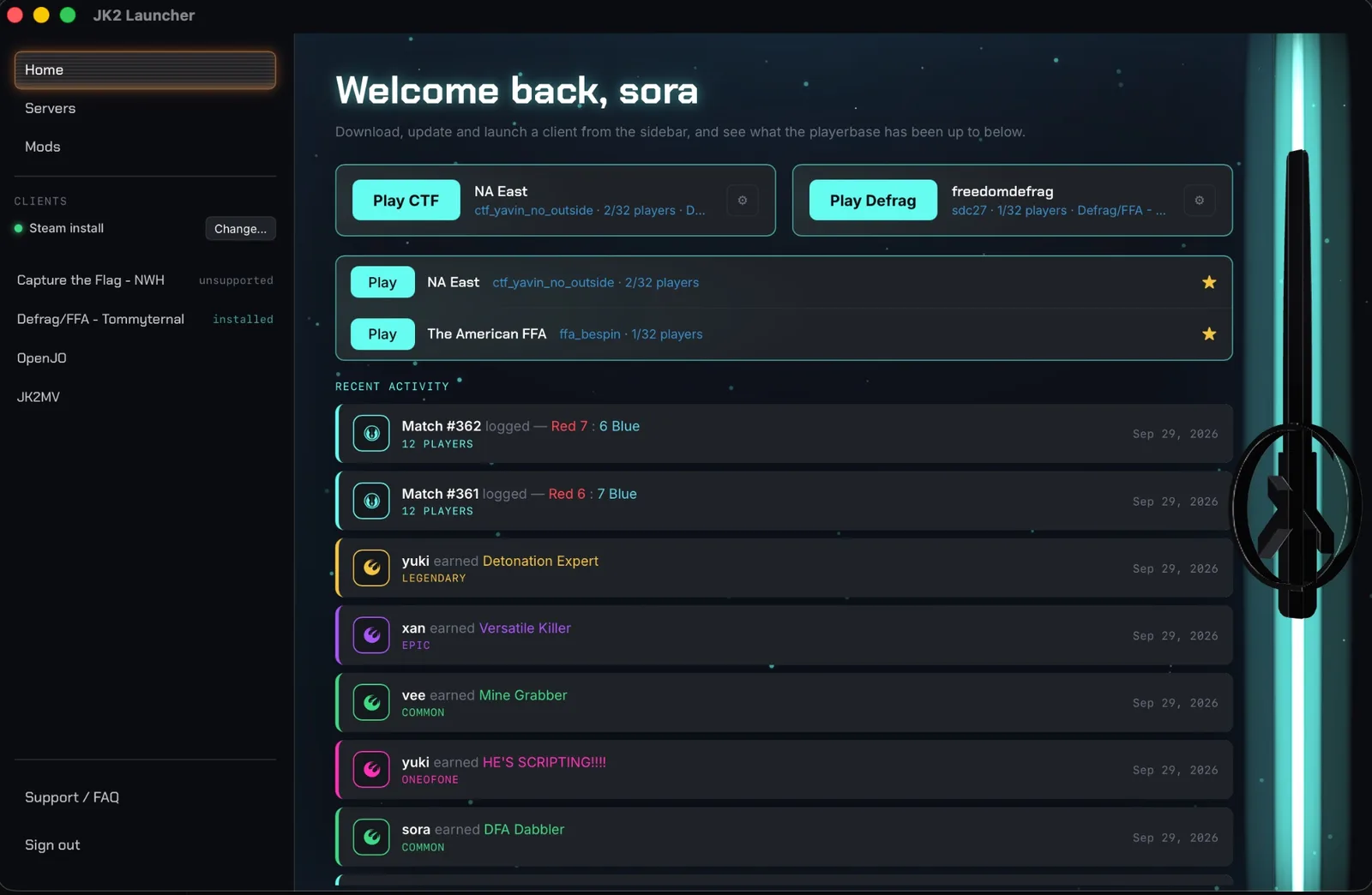
The launcher looks for your Steam copy of Jedi Outcast by itself. A green dot and Steam install under Clients in the sidebar means you're set. If it says Not found, click Change... and point it at your game folder.
- 03
Install a client
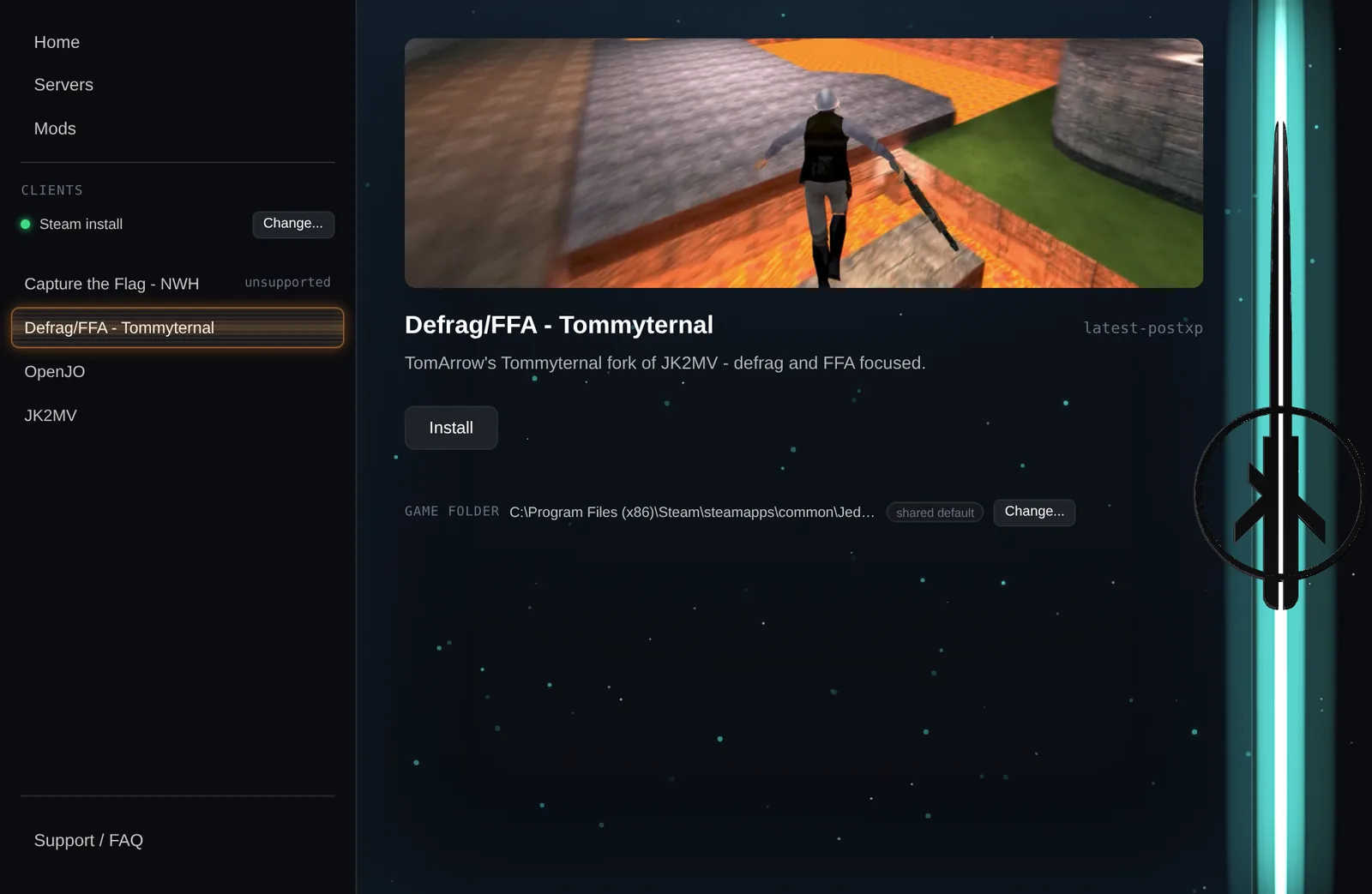
Pick a client in the sidebar and click Install. Which one you want depends on what you play:
- Defrag/FFA - Tommyternal for defrag, FFA and most public servers.
- JK2MV, the modernised engine the others build on.
- Capture the Flag - NWH, the anti-cheat client organised CTF runs on, for Windows and Linux. The launcher installs it on Linux; on Windows, get it from the NWH download for now.
- OpenJO for the single-player campaign.
- 04
Play
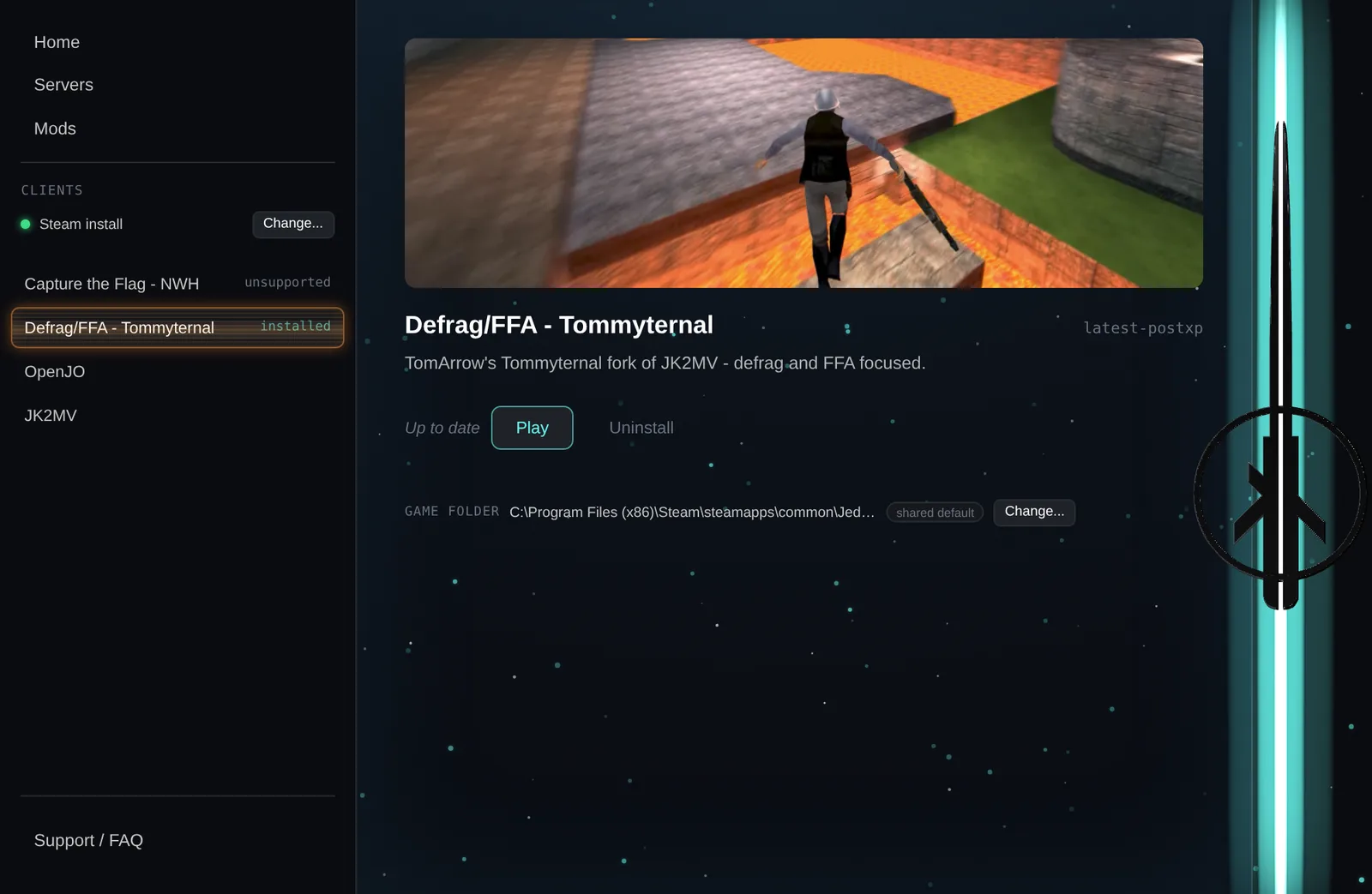
Once a client is installed, its page shows Play, plus Update when a new version is out.
- 05
Join a server
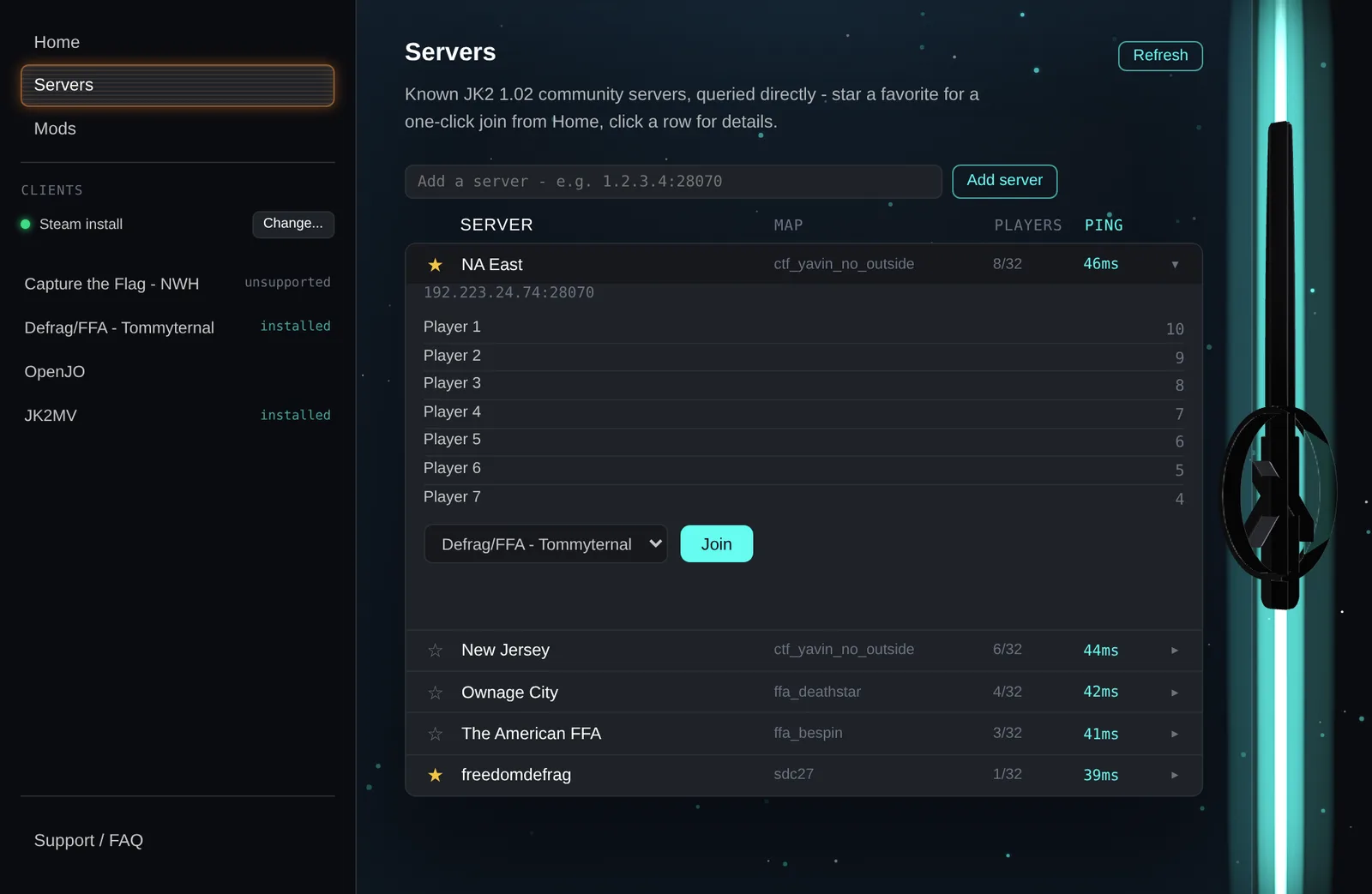
Servers lists the community servers with their map and player count. Click one to see who's on and join with any installed client. Star up to three to pin them to Home. Playing somewhere that isn't listed? Paste its address into Add server.
- 06
One-click CTF and defrag
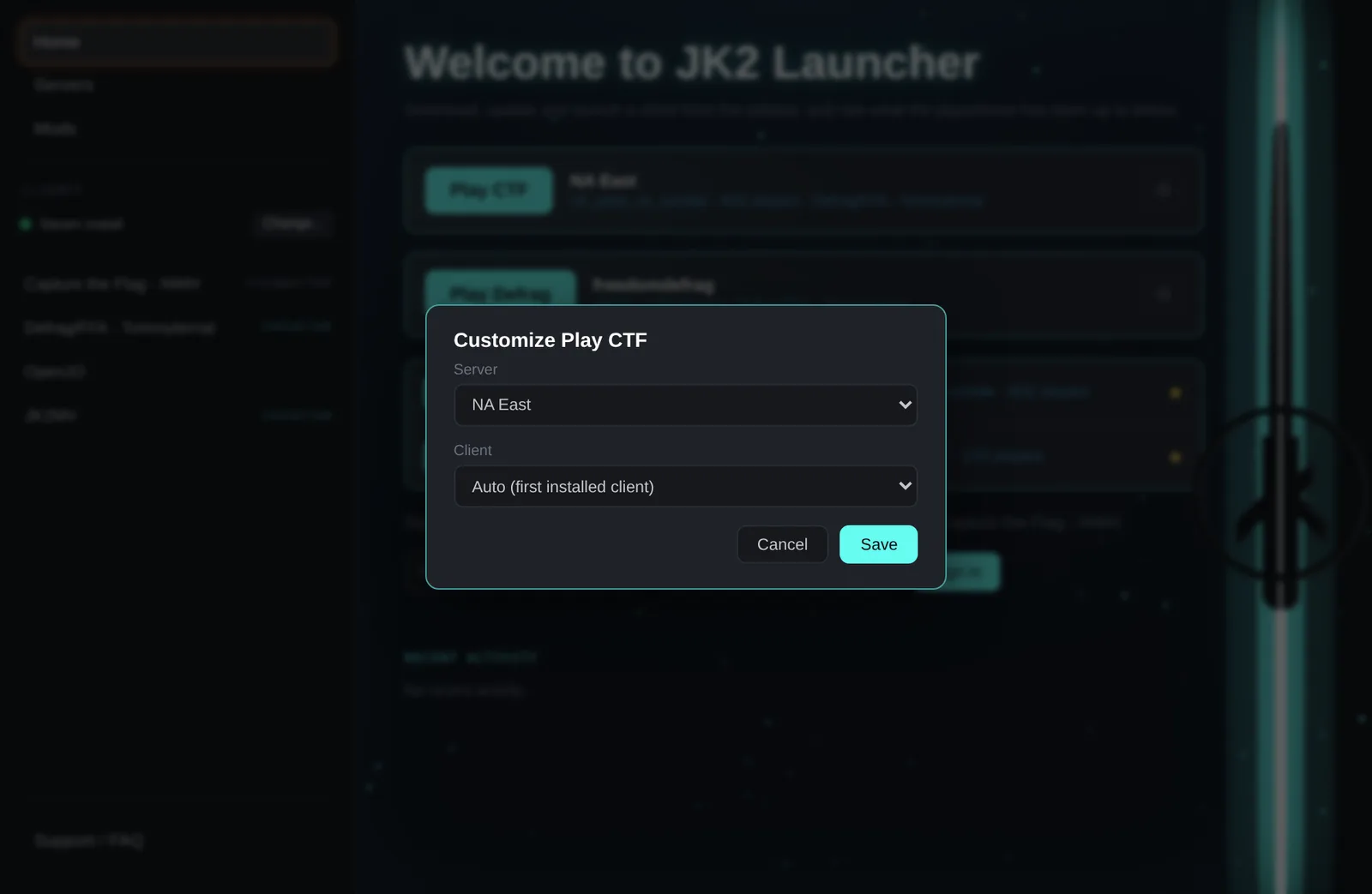
Play CTF and Play Defrag on Home drop you straight into a server. The gear beside each one picks which server and which client it uses.
- 07
Add maps and mods
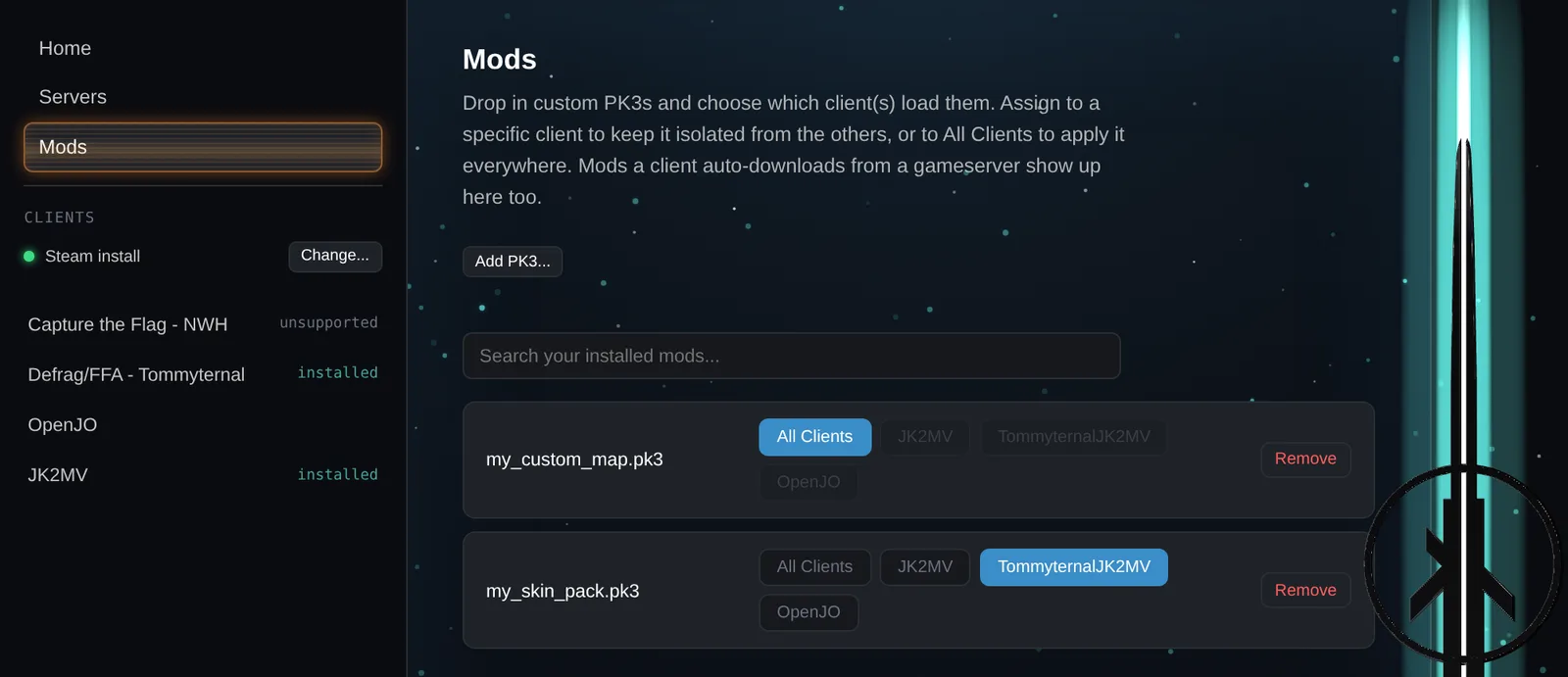
Mods takes any PK3 - a map, a skin pack - either from your computer with Add PK3... or from the Monolith community catalogue. Choose All Clients or a specific one, and the launcher puts it where that client actually reads it.
Stuck? The FAQ covers the usual snags, and the community Discord is where admins and other players actually are.